English
 Arabic
 French
 Spanish
 Portuguese
 Deutsch
 Turkish
 Dutch
Dutch
 Italiano
 Russian
 Romaian
 Portuguese (Brazil)
 Greek
Greek
Recommended Title Stop Letting Everything Affect You by Daniel Chidiac
Sports |
2026-06-22 03:51:20
 Advertise With Us
 About Us
 Terms And Conditions
 Privacy Policy
Mostra tutti i risultati
Privacy Policy
Mostra tutti i risultati

Passa a Pro
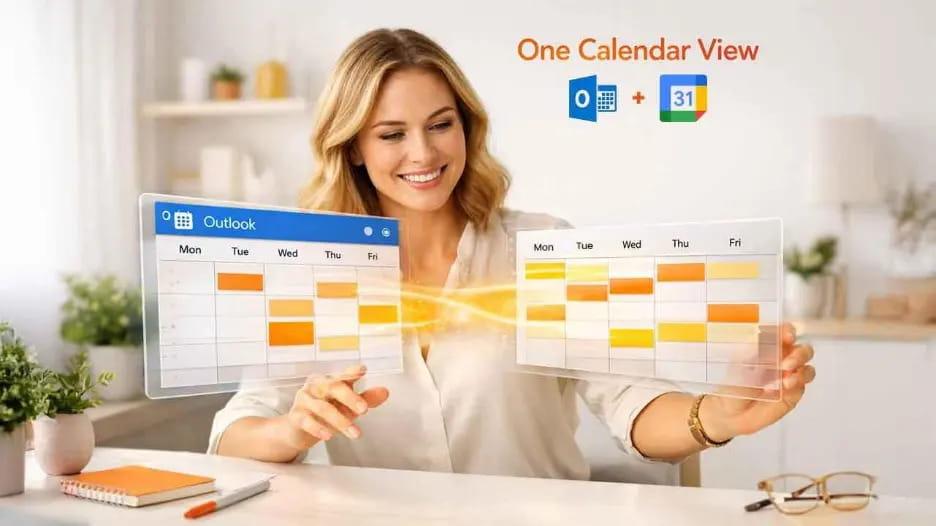
Managing multiple calendars can quickly become overwhelming, especially if you use Microsoft Outlook for work and Google Calendar for personal scheduling. Instead of switching between apps, you can Add Outlook Calendar to Google Calendar to view your appointments, meetings, and events in one convenient place.
Whether you're a professional, student, freelancer, or business owner, syncing your Outlook Calendar with Google Calendar helps you stay organized, avoid scheduling conflicts, and improve productivity.
In this guide, you'll learn how to add Outlook Calendar to Google Calendar, the benefits of syncing, common troubleshooting tips, and best practices for seamless calendar management.
Many users rely on Outlook for work-related events while using Google Calendar for personal activities. Viewing both calendars together eliminates the need to constantly switch between platforms.
Some key benefits include:
View all events in one calendar
Avoid double-booking appointments
Improve productivity
Manage work and personal schedules together
Access events from any device
Simplify meeting planning
Stay organized while traveling
Whether you're working remotely or managing a busy schedule, syncing your calendars saves valuable time.
Yes. Microsoft Outlook allows you to publish or share your calendar, and Google Calendar can subscribe to it using an Internet Calendar (ICS) link. This enables Outlook events to appear in Google Calendar automatically.
Keep in mind that, in many cases, this is a one-way sync—changes made in Outlook are reflected in Google Calendar after synchronization, but edits made in Google Calendar generally do not update Outlook.
Follow these simple steps to connect your Outlook Calendar with Google Calendar.
Sign in to your Outlook account.
Open Calendar from the navigation menu.
Go to Settings and locate the Shared Calendars or Publish Calendar option.
Choose the calendar you want to share and select the appropriate permissions, such as viewing all event details or only availability.
After publishing, Outlook will generate an ICS (iCalendar) link.
Copy this link.
Sign in to your Google account and open Google Calendar.
On the left panel, locate Other Calendars.
Click the + (Plus) icon.
Choose From URL.
Paste the Outlook ICS calendar link.
Click Add Calendar.
Google Calendar will begin importing your Outlook events.
After a few moments, your Outlook calendar should appear under Other Calendars.
You can now enable or disable it whenever needed.
Instead of managing two separate calendars, you can view all appointments in a single interface.
Having every meeting and reminder in one place reduces confusion and helps you plan your day more efficiently.
Google Calendar works across Android, iPhone, tablets, and web browsers, allowing you to check Outlook events from virtually anywhere.
Viewing both work and personal commitments together helps prevent overlapping meetings and missed appointments.
Google Calendar makes it simple to share availability with colleagues, friends, and family while keeping your Outlook events visible.
Although the process is straightforward, users occasionally encounter synchronization issues.
Google Calendar may take some time to refresh subscribed calendars. Updates are not always immediate.
If your Outlook calendar isn't shared correctly, Google won't be able to access it.
Ensure you've copied the complete Outlook calendar URL without modifications.
Check that the correct Outlook calendar was published and that all events are included in the shared view.
To make the most of calendar synchronization:
Use different colors for work and personal calendars.
Enable notifications for important meetings.
Review your calendar daily to stay on top of upcoming events.
Share only the calendars that need collaboration.
Regularly verify that synchronization is working as expected.
These practices help maintain an organized and efficient schedule.
Calendar synchronization is beneficial for:
Business professionals
Remote employees
Students
Freelancers
Project managers
Sales teams
Consultants
Small business owners
Anyone managing events across Microsoft and Google ecosystems can benefit from combining their calendars.
For the best experience:
Keep both accounts secure with two-factor authentication.
Update your Outlook events regularly.
Remove outdated shared calendars when no longer needed.
Use clear event titles for easier identification.
Periodically check synchronization if you rely on time-sensitive schedules.
Yes. Outlook allows you to publish your calendar using an ICS link, which can be added to Google Calendar through the From URL option.
In most cases, Outlook updates will eventually appear in Google Calendar, although synchronization may not be immediate.
Typically, no. Standard ICS subscriptions are one-way, meaning edits in Google Calendar do not sync back to Outlook.
Yes, provided you share your calendar only with appropriate permissions and protect your Microsoft and Google accounts with strong passwords and multi-factor authentication.
Learning how to Add Outlook Calendar to Google Calendar is a simple yet effective way to keep your work and personal schedules organized. By syncing your Outlook events with Google Calendar, you can view everything in one place, reduce scheduling conflicts, and improve your overall productivity.
Whether you're managing client meetings, project deadlines, or personal appointments, integrating these two popular calendar platforms helps you stay organized and ensures you never miss an important event.